How to Duplicate Trello Board Without Adding to the Chaos
Duplicating a Trello board should feel like giving yourself a shortcut, not like creating a digital junk drawer. Let’s make sure you do this the right way.
In this Trello board tutorial, I’ll walk you through exactly how to duplicate a Trello board the right way, step by step.
You’ll also learn when it makes sense to copy Trello boards, when to start from scratch, and how to create Trello template boards that keep your workspace organized.
Disclaimer: Please note this post may contain affiliate links. This means I may receive a commission if clicked at no extra cost to you. Though the opinions remain my own
Watch This on YouTube:
Prefer to follow along visually? Watch the full tutorial on my YouTube channel:
How to Duplicate a Trello Board (Step-by-Step)
Duplicating a board is simple, but there are key settings to check to avoid chaos later.

Step 1: Find the Copy Option
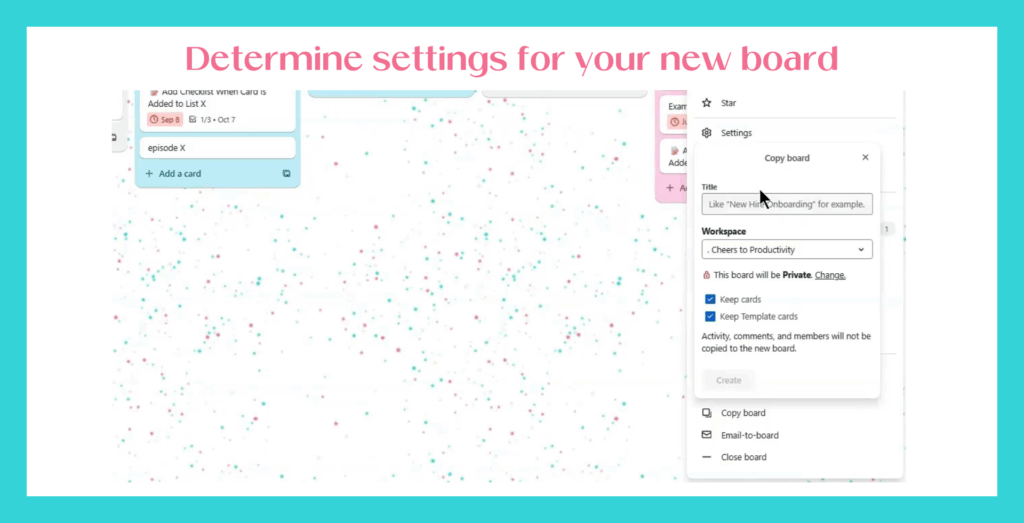
Open the board you want to duplicate. Click the three-dot menu in the top corner, then select Copy board.
Step 2: Choose Your Settings
When the copy panel opens, you’ll see a few choices that determine how your shiny new board will look. Let’s break them down:
Title
Give your board a name that actually makes sense. Please don’t call it “Everything” or “Random.” That’s like labeling a kitchen drawer “Stuff”
Sure, it works for a week, but then you’re digging through chaos to find the scissors.
Instead, pick something clear and specific (like “Training YouTube Content Planner”). Future you will seriously thank present you for skipping “Random Board #17.”
Workspace
This one’s simple: choose the right home for your board. Think of it like putting laundry in the correct basket.
Sure, you could toss it all in one pile, but separating it now saves you so much time later.
Privacy
For most solopreneurs, private is the way to go. It keeps your workflows safe from wandering eyes and helps you stay focused on your system, not anyone else’s.
Keep Cards
Keep this box checked! Otherwise, you’re duplicating an empty shell. Cards, due dates, labels, and checklists all copy over.
The only things that don’t are members, comments, and activity which is usually a good thing. You want a clean slate, not yesterday’s chatter. 🤭

Step 3: Review Your New Board
Once you click Create, Trello makes a full copy of your board including labels, checklists, and due dates.
Checklist items that were checked off in the original will stay checked in the copy, so double-check if you want a fresh start.
Pro Tip: Create a Template-Size Version
Instead of duplicating a messy working board, create a clean Trello template board you can copy again and again.

For example, I have a Course Creation Workflow board set up as a template and honestly, it’s like my secret weapon. This board is already stocked with everything I need to kick off a new course without spinning my wheels.
Here’s what’s inside:
- Pre-created labels so I don’t waste time fiddling with colors every time
- Detailed checklists that walk me through everything from outlining lessons to setting up a private podcast feed
- No members assigned (because every fresh copy is mine to customize as needed)
- Nothing pre-checked, so I always start with a true clean slate
It even includes all those tiny but important steps most people forget, like updating lesson text, embedding podcast players, or adding affiliate reminders. Having it all mapped out means I don’t miss a thing when I’m in creation mode.
So instead of starting from scratch, I just duplicate the template and get straight to work.
It’s like having a project manager baked right into my Trello board, and it keeps me consistent every single time. 👏
Related Post: Trello for Business: How to Build Streamlined Systems That Scale

When to Duplicate vs. Start from Scratch
Just because you can duplicate a Trello board doesn’t always mean you should. Sometimes a fresh start is the smarter move, and sometimes a Trello template board is your best friend. The trick is knowing which path to take.
So, ask yourself these two questions:
- Is this a brand new project with zero structure yet? → Build a board from scratch.
- Have you done something similar before? → Duplicate a Trello board from a clean template and save yourself hours.
For example, when I first started my YouTube content board, I created it from scratch because I didn’t have any kind of process yet. I’m refining it over time as I figure out what’s working.
But when it comes to launches, I duplicate my pre-built launch template (with 200+ tasks already mapped out from prep, to planning, to marketing).
It’s like having a step-by-step recipe handed to you, so all you have to do is get cooking. 🍳
Related Post: How to Duplicate a Trello List Without Unwanted Clutter

Keep Your Boards Working for You
At the end of the day, duplicating a Trello board should feel like giving yourself a shortcut, not creating extra clutter. By choosing clear titles, setting up Trello template boards for repeat projects, and knowing when to duplicate a Trello board versus when to start fresh, you’ll keep your Trello organization simple and stress-free.
- Want even more shortcuts? Grab my free guide with 9 Essential Trello Hacks to save hours every week.
- If you’d rather skip the setup completely, check out my Trello template shop for ready-to-use boards.
- And if you prefer learning visually, subscribe to my YouTube channel for quick Trello tutorials.
Remember, the whole point is to make Trello work for you. Once your systems are in place, you’ll spend less time setting things up and more time moving your business forward. 📈